DragonSword: Awakening Best PC Settings
Quick answer
The best DragonSword: Awakening settings for most PCs are Shadow Quality, Global Illumination and Post-Processing on Medium, Volumetric Shadows on Medium, DLSS or FSR enabled, and V-Sync off in-game with the frame rate capped in your GPU control panel. These three quality settings carry the largest performance cost for the smallest visual difference.
Updated · Verified on Patch 1.0.x · Sources: in-game testing, Steam store page, Hound13 announcements
Settings menus in Unreal Engine 5 games are misleading, because two sliders can look similar and cost wildly different amounts of frame time. This page ranks DragonSword: Awakening's options by what they actually cost.
Settings ranked by performance cost
| Setting | Cost | Recommendation | Why |
|---|---|---|---|
| Shadow Quality | Very high | Medium | The single largest GPU cost. High to Medium is a big gain for a change you rarely notice in combat. |
| Global Illumination | Very high | Medium | UE5's lighting is expensive. Medium keeps the art direction intact. |
| Post-Processing | High | Medium | Also controls bloom and motion blur intensity. |
| Volumetric Shadows | High | Medium, or Off on weak GPUs | Costs most in fog and forest areas. |
| Resolution Scale | High | 80–100% | Combine with FSR/DLSS rather than dropping alone. |
| Upscaling (DLSS / FSR) | Negative — it gives frames back | On | The biggest single gain available on mid and low-end cards. |
| Texture Quality | Low (VRAM-bound) | High if you have 6 GB+ VRAM | Cheap on frame rate; costs memory, not compute. |
| View Distance | Medium | High | Matters in the open world; cutting it hurts visual quality noticeably. |
| Anti-Aliasing | Low | TAA or the upscaler's built-in | Redundant if DLSS/FSR is on. |
| Effects Quality | Medium | High | Combat readability depends on it — see the warning below. |
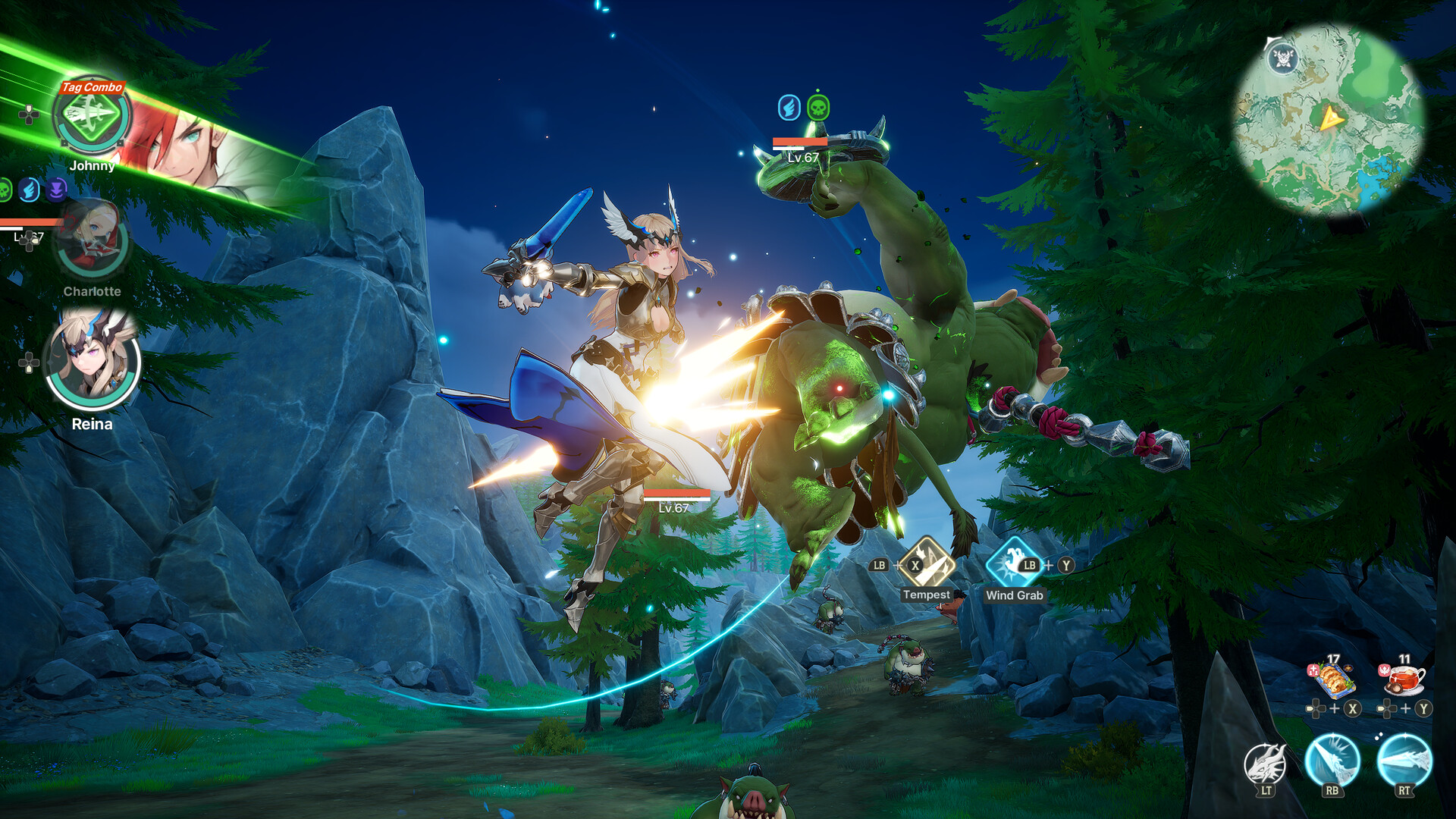
Do not lower Effects Quality to chase frames. Status ailment build-up, Signal Skill prompts and Break indicators are communicated through combat VFX in DragonSword: Awakening. Reducing Effects Quality makes those cues harder to read, which costs you more in dropped tag combos than the handful of frames it returns.
Preset configurations
GTX 1660 / RX 5500-class (the minimum spec)
Target: stable 60 fps at 1080p.
- Upscaling: FSR, Quality; Resolution Scale 80%
- Shadow Quality, Global Illumination, Post-Processing: Medium
- Volumetric Shadows: Off
- View Distance: Medium, Textures: Medium, Effects: High
- V-Sync: Off, frame cap 60 in the GPU control panel
RTX 3060 / RX 6600-class (mid-range)
Target: 1080p–1440p at 60–90 fps.
- Upscaling: DLSS Quality (or FSR Quality on AMD); Resolution Scale 100%
- Shadow Quality, Global Illumination: Medium; Post-Processing: High
- Volumetric Shadows: Medium, View Distance: High, Textures: High, Effects: High
- Frame cap 3 fps below your refresh rate
RTX 4070 and above (high-end)
Target: 1440p–4K at high refresh.
- Upscaling: DLSS Quality, or off at 1440p if you prefer native
- Everything on High; test Epic shadows and lower them first if you drop frames
- Frame cap 3 fps below refresh, or use G-Sync/FreeSync with V-Sync forced on in the control panel only
The settings outside DragonSword: Awakening that matter most
Three of the largest wins for DragonSword: Awakening are not in the graphics menu at all:
- Shader Cache Size: Unlimited. Set this in the NVIDIA Control Panel or AMD Adrenalin. It is the strongest single fix for traversal stutter, because it stops DragonSword: Awakening recompiling shaders it has already built.
- Exclusive Fullscreen, not Borderless. Borderless windowed adds a compositor pass and, on some systems, forces V-Sync behaviour you did not ask for.
- Hardware-Accelerated GPU Scheduling: On. Found in Windows Settings → System → Display → Graphics. Reduces CPU overhead, which helps on the i5-9400F-class CPUs at the minimum spec.
The V-Sync trap
This is the most common misconfiguration reported for DragonSword: Awakening. Enabling V-Sync in both the in-game menu and your GPU control panel produces heavy input latency and stutter that feels worse than no cap at all.
The correct configuration:
- In-game V-Sync: Off
- GPU control panel: cap the maximum frame rate to 3 fps below your monitor's refresh rate (141 on a 144 Hz panel, 57 on a 60 Hz panel)
- If you have G-Sync or FreeSync, that cap keeps you inside the variable-refresh window, which is where the technology actually works
Input latency matters here more than in a turn-based RPG. Dodge and parry timing, and the Signal Skill response window, are all latency-sensitive.
Upscaling: DLSS or FSR?
Use whichever your GPU supports, at Quality preset. Both give back a substantial amount of frame time in DragonSword: Awakening because it is GPU-bound at almost every setting level.
Below Quality preset, upscaling artefacts start to interfere with combat readability — thin VFX like ailment build-up rings and Signal Skill flashes are exactly the sort of high-frequency detail that reconstructs poorly. On weak hardware, prefer Quality upscaling plus lower shadows over Performance upscaling with high shadows.
FAQ
What are the best settings for DragonSword: Awakening?
Shadow Quality, Global Illumination and Post-Processing on Medium, Volumetric Shadows on Medium, DLSS or FSR on Quality, V-Sync off in-game, and a frame cap set in your GPU control panel.
How do I increase FPS in DragonSword: Awakening?
Enable DLSS or FSR upscaling, drop Shadow Quality and Global Illumination to Medium, set Shader Cache Size to Unlimited, and switch to exclusive Fullscreen.
Should I use DLSS or FSR in DragonSword: Awakening?
Use whichever your GPU supports, at the Quality preset. Avoid Performance presets, which degrade the combat VFX you need to read Signal Skill prompts.
Does DragonSword: Awakening support ultrawide monitors?
The game runs at ultrawide resolutions. If HUD elements sit awkwardly at 32:9, raise UI scale so the Signal Skill prompt stays inside your natural field of view.